

Highline Accounts Password Help
Always remember to create a strong password, and change it at least every 365 days.
If you are a new student, first make sure you have activated your myHighline account.
If you do not know your ctcLink Student ID number, but you have previously been assigned one:
- You can contact the Admissions Office at admissions@highline.edu with your full name, date of birth, address, and application number (if available), preferably from the email address listed on your application.
On this page, you will find instructions for:
Note: Images may vary based on your device and settings.
Password Expired or Expiring Soon?
If you received a notification that your password is expired or expiring soon, you may log in and change it on the MyApps Dashboard.
If your password has already expired and you remember it, simply log in to MyApps, where you will be asked to set a new password. If your password is not expired, follow the instructions below to set a new password.

Instructions for Changing Your Password
Step 1
Go to the MyApps Dashboard.
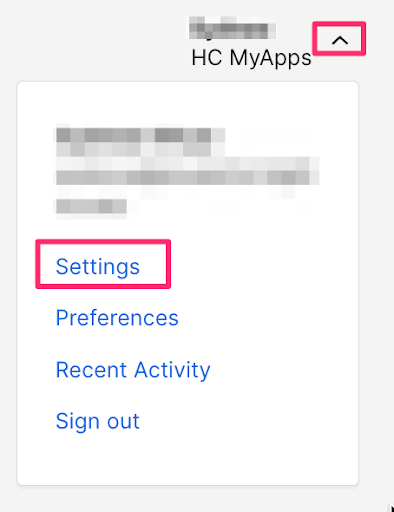
If your password has not yet expired, after logging in, choose ‘Settings’ in the drop-down menu in the upper right corner.
Step 2
Once in Settings, you will see the ‘Change Password’ box on the right. Enter your current password and then set a new password, and click ‘Change Password.’ Be sure to choose a strong password.
You may be asked to complete a Multi-Factor Authentication (MFA) response to complete the change.

Instructions for Resetting a Forgotten Password
Step 1
If your account remains active, you can reset a forgotten password on the MyApps Dashboard.
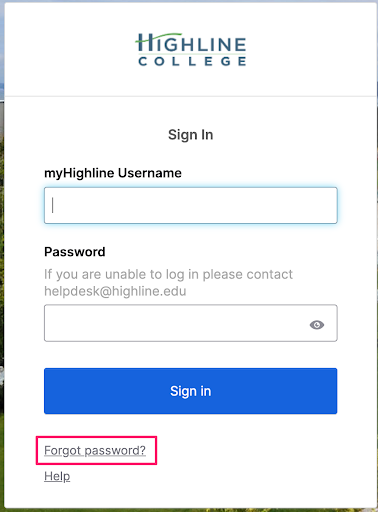
At the myApps login page, choose “Forgot Password?”
Step 2
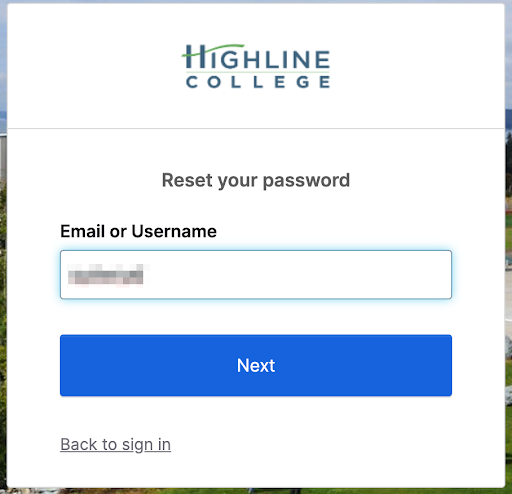
Enter your myHighline email (@students.highline.edu) or username and click the ‘Next’ button.
Step 3
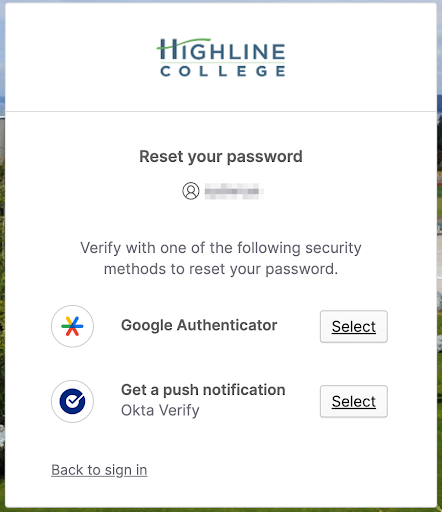
You must verify your identity with one of your existing Multi-Factor Authentication (MFA) methods.
Step 4
You will now be able to choose a new password. Enter your new password in both password boxes and choose ‘Reset Password.’ Your password will now be reset to your new chosen password and you will be logged in to the myApps Dashboard.

Note:
If you are unable to reset your password this way, you will need assistance from the ITS Help Desk in Building 30, or contact them at helpdesk@highline.edu or (206) 592-4357.
- Your 9-digit ctcLink Student ID number will be required
- If contacting them over email or phone, they will require additional identifying information for verification purposes
Instructions for Expired Accounts
If your account is expired:
- You will need assistance from the ITS Help Desk in Building 30, or contact them at helpdesk@highline.edu or (206) 592-4357.
- Your 9-digit ctcLink Student ID number will be required
- If contacting them over email or phone, they will require additional identifying information for verification purposes
If you are not currently eligible to enroll:
- The ITS Help Desk can not enable your account, and they will refer you to the Admissions Office to update your current status with the college.
Questions?
- Please contact the Help Desk.