

Highline Wi-Fi for iOS
These are the instructions for connecting to the Highline Wireless Network on iOS, such as an iPhone or iPad.
- Return to: Highline Wi-Fi Guide
Instructions
Step 1
- Please note: Your screen may look different based on your version of iPhone and your settings.
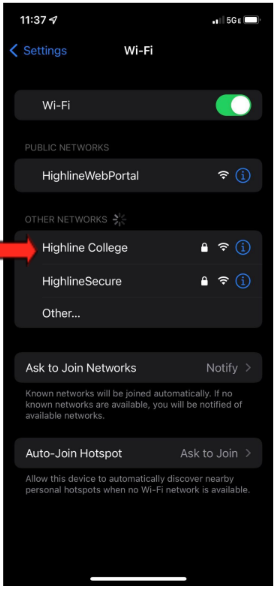
Under ‘Settings’ > ‘Wi-Fi’ you will find the list of available Wi-Fi networks.
Select Highline College.
Step 2
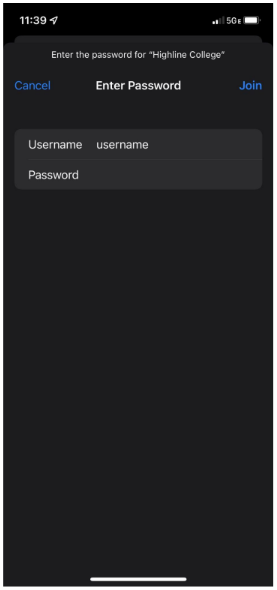
Enter your Highline username and password.
Step 3
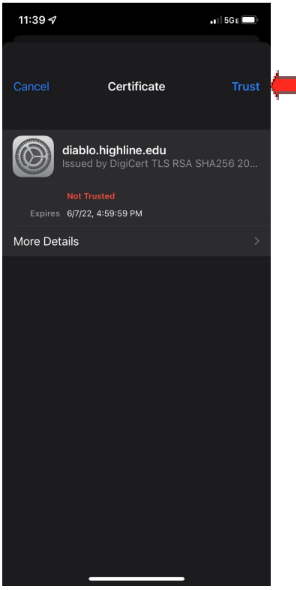
When prompted for the certificate ‘diablo.highline.edu,’ click ‘Trust’ at the top right.
Step 4
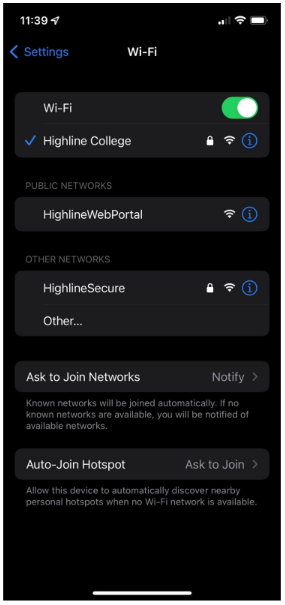
You are now connected to the Highline College Wireless Network
Questions?
- Please contact the Help Desk.