
Zoom Guide
Tutorial: Installation and Sign-in
Learn how to set up the Zoom app on your local devise and log in securely.
Getting Started: Download the App
Begin by downloading the Zoom app to your computer or mobile device.
There is a free license and a Pro license. The free license limits calls to 40 minutes, while the Pro license is unlimited.
Faculty and Staff who need a Zoom Pro license may contact the Help Desk to request one.
If you have questions about using Zoom, or would like to try a test meeting, contact the Instructional Design team at id@highline.edu.
Instructions: Zoom Desktop App or Website: Single Sign-On (SSO)
Zoom sessions should be run from your local device by downloading the app through the links above.
Step 1
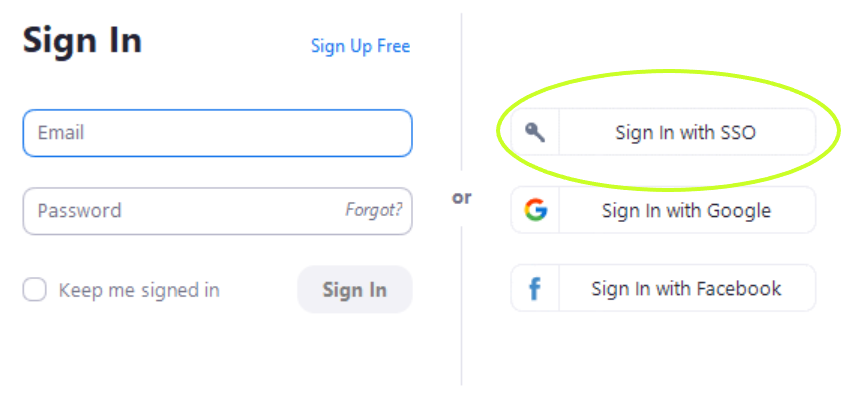
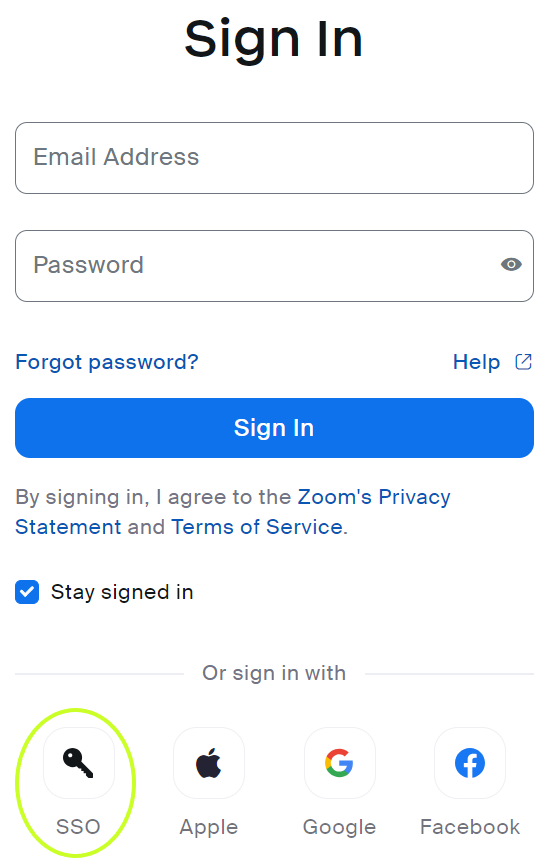
When logging in through the Zoom desktop app or website, you will need to select the Single Sign-On (SSO) option on the sign in screen.
Below are two examples of how the sign in screen may look, and where to find the SSO option (circled in green).
Example 1
Example 2
Step 2
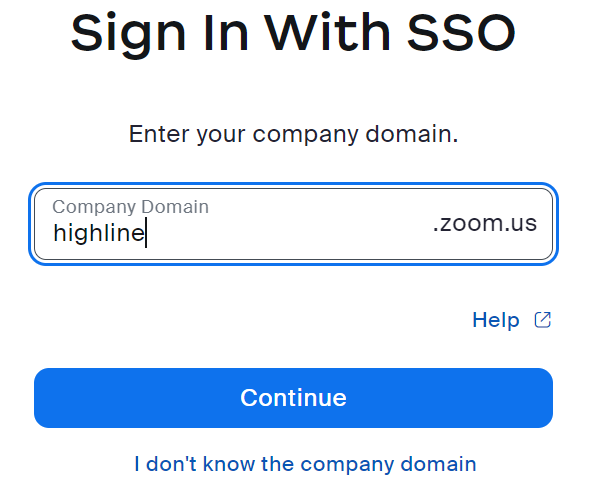
Once you have selected the SSO option, you will be asked to enter your company domain.
- The company domain is Highline
Step 3
You may then be asked to enter your Highline username and password to log in to Highline Zoom.
Questions?
- Please contact the Help Desk.