
Highline VPN (Virtual Private Network)
CIS Students: Linux Setup
Guide to setting up the GlobalProtect VPN client on Linux, for CIS students.
CIS VPN Address: cisvpn.highline.edu
- For setup on other systems, see the Highline VPN Guide.
Instructions
Step 1
Download the CIS VPN Linux Installation file. You must be logged into Google using your myHighline student email account.
Once the .tgz file is downloaded, extract it using the following command:
sudo tar -xvf PanGPLinux-X.X.X-xx.tgz
- Note: The (X.X.X-x.x) are placeholders for the version number. Ensure you add the correct name with the version number of the file downloaded from the repository.

Step 2
Install the application by running this command in the terminal:
./gp_install.sh

Step 4
Once the application is installed, you can run it and connect to the VPN address: cisvpn.highline.edu
If the application is not dissipated you can start the application with:
globalprotect launch-ui

Step 5
Before connecting on Ubuntu 22 you may need to modify the SSL security setting by add the following to the end of the openssl.cnf file
Options = UnsafeLegacyRenegotiation

Step 6
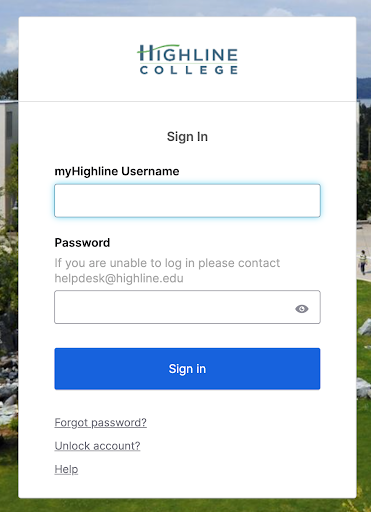
Once the SSL setting have been updated you can login to the VPN by entering your Highline Username and password on in the Okta window
Step 7
Verify your connection by checking the IP address assigned to the “gpd0” interface

Important! When you are done working online, be sure to disconnect and end your session to free up usage for other users.
Questions?
- Please contact the Help Desk.