
ctcLink MyAccount
Tutorial: Changing Your Password
You can reset your ctcLink account’s password through ctcLink MyAccount.
For any password issues on your other Highline accounts, see the Highline Password Help Guide.
Instructions
Note: Images will vary based on your device and settings.
Step 1
Log in to your ctcLink MyAccount using your ctcLink Student ID (9 digit number) and password.
- Note: Another way to log in to ctcLink MyAccount is through your MyApps Dashboard, where there is a tile for it a the bottom. Here’s a tutorial for logging into ctcLink from MyApps.

Step 2
On the ctcLink MyAccount landing page, you can find the ‘Password Settings’ tile in the central ‘My Apps’ section. Click to enter.

Step 3
On the right side, you can find the ‘Security Methods’ section.
- Note: This is where you can set up or adjust your security and Multi-Factor Authentication options for the identity verification process most Highline apps require.
Across from ‘Password,’ click the ‘Reset’ button.

Step 4
When you click on the password ‘Reset’ button, a pop-up will ask your to confirm. Click ‘Yes.’

Step 5
You will be redirected to the ‘Reset your passsword’ screen to verify your identity for security purposes.
There will be an email address with your ctcLink Student ID number followed by @ctclink.local
- Confirm the ctcLink number is yours.

Step 6 – Identify Verification Methods
You will now have to verify your identity using a previously set up Multi-Factor Authentication security method. If you have not set any up, this ctcLink MFA Setup tutorial will guide you through the process.
- Verify by Phone: You can choose to receive a code through the phone number listed on the ‘Reset your password’ screen above, through SMS (Text Message) or a Phone Call (computer voice).
- Verify with something else: You can also look at the Other Methods available to you.
Verify by SMS (Text Message) or a Phone Call
If you select verification by phone, you will be prompted to click ‘Receive a code via SMS’ in order to be sent a code to enter in the next screen.
If you prefer to receive a (computer) voice call with your code, click ‘Receive a voice call instead.’
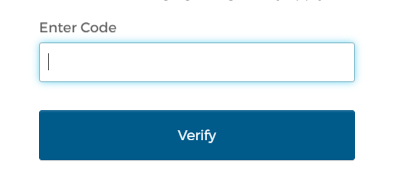
When you choose either method and click the blue button to receive the code, you will get a SMS or call shortly. Enter the code given to you into the box, and click the blue ‘Verify’ button.
Verify with something else
If you click ‘Verify with something else,’ any other security methods you previously set up will be listed.
There may be an email option, or a notification through the Okta Verify app or another Authenticator.
Step 7
When your identity is verified, you will be asked to choose a new password, with requirements to make sure it is secure. Be sure to pick a strong password.
Make sure to save your password securely. When ready, click the blue ‘Reset Password’ button.

Questions?
- Please contact the Help Desk.